

FFL Filters
A free WooCommerce filter plugin built for FFL dealers
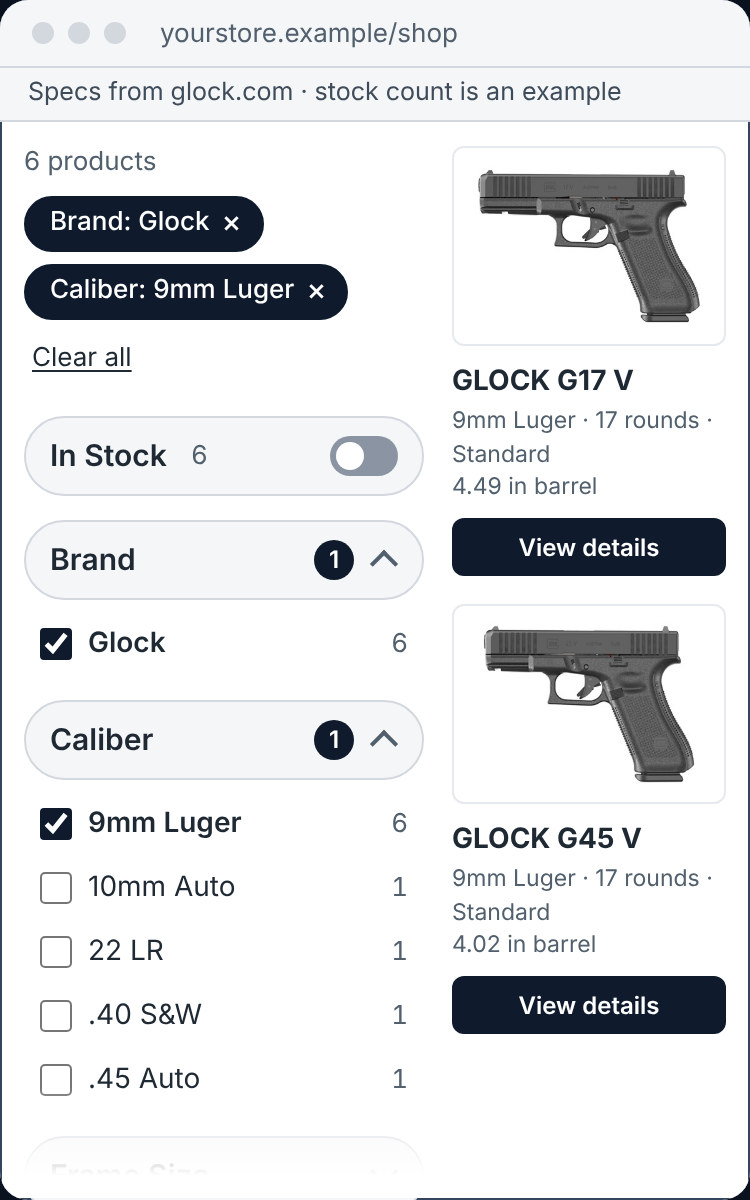
Help shoppers find what they came for. FFL Filters lets them narrow your catalog by caliber, brand, price, barrel length, capacity and what's in stock, from a panel that sits in your shop sidebar on a computer and opens as a drawer on a phone.
Version 1.3.5 · Free · GPLv2 or later
Built around how gun stores sell
Firearm filters, set up the way gun buyers shop
Caliber merging. A plain text attribute is how a store ends up with 9mm, 9x19 and 9mm Luger as three separate checkboxes, so FFL Filters can show them as one Caliber choice; the shopper checks one box and sees every gun in that chambering, and you review the synonym groups on the Presets tab.
Ranges. Barrel length, capacity, bullet weight and optics magnification each get a range, read from the attribute values you already have (16 in, 10+1 and the like), so a shopper can ask for a 16 to 20 inch barrel or a 3 to 9 power scope.
Firearm type. A Firearm type filter shows the type values already in your catalog; FFL Filters doesn't classify anything for you.
In store. One switch shows the products you've tagged as on the shelf, for the buyer who wants to drive over and pick it up today.
Fits your shop
It sits in your theme instead of fighting it
The panel uses your theme's font and colours instead of loading its own, and on Kadence it picks up your theme palette. It shows up on your shop and category pages on its own, or you can place it yourself with the FFL Filters block or the [ffl_filters] shortcode. Long lists like Brand show the top choices first, with Show all and a search box for the rest, and active filters show as chips the shopper can clear with one tap.
On a phone you choose how it behaves: a drawer, a collapsible panel or the regular sidebar. The filters are a plain form underneath, so they still work for a shopper who has JavaScript turned off; groups are labelled for screen readers, keyboard focus is easy to see, and the result count is announced when it changes.
Filtered pages are set to noindex, follow, and a robots.txt block covers the filter URLs, so search engines spend their time on your real shop and category pages.
Settings you can run yourself
Set up by the person who runs the shop
The Welcome tab walks you through setup in three steps, with one switch per filter and an Add to my shop sidebar button (Undo takes it back out). The Filters tab is where you rename, reorder and hide filters, and the Health tab shows the filter cache and the WooCommerce lookup table status, logs slow filter queries and tells you why a product isn't showing up. An Import tab saves your settings to a backup file you can restore later.
Install
Install FFL Filters
- Make sure WooCommerce 9.2 or newer is installed and active.
- Download the FFL Filters 1.3.5 zip file from this page and keep it zipped.
- In WordPress, go to Plugins > Add New Plugin > Upload Plugin, choose the zip file and click Install Now.
- Click Activate.
- Go to WooCommerce > FFL Filters. The Welcome tab walks you through the three setup steps, starting with which filters to show.
If another filter plugin is active, FFL Filters names it in a notice; set up FFL Filters, check your shop page, then deactivate the old one so shoppers don't get two sets of filters.
Requirements
- WordPress 6.5 or newer (tested up to 7.1)
- WooCommerce 9.2 or newer (tested up to 11.2)
- PHP 7.4 or newer
Download
Get FFL Filters 1.3.5
FFL Filters is free for any FFL running WooCommerce. If you'd like a hand setting it up, or you want more out of your store than filters, talk to Coriolis.